
Authentication
The auth/account screens — login, registration, password recovery and lock screen — that ship as static front-end pages for you to wire to your own backend.
Taxi CRM 2026 ships a complete set of account screens: loginV1, loginV2,
registrationV1, registrationV2, forgotPassword, resetPassword and lockScreen. Each is
a standalone, ready-to-edit HTML page (<page>.html).
These are static front-end screens only. They handle layout, client-side validation and UX (toasts, password toggles, strength meters), but they do not perform real authentication — there is no session, token or server check. Every form's
submitHandlerjust logs the collected data to the console, shows a success toast and (where relevant) redirects. You wire each form to your own auth backend by replacing thatsubmitHandler.
loginV1/loginV2 and registrationV1/registrationV2 are alternate visual layouts of the
same flow — pick the style that fits your product and delete the other. V1 is a split-screen
quote/form layout; V2 is a floating panel over a live dispatch map. The fields, validation rules
and behaviour are otherwise equivalent within each pair.
All pages load Bootstrap 5, the kit's style.css, jQuery, and jQuery Validate. Validation
is configured through the shared helper app.validation.init(selector, options) defined in
assets/js/core/app.js; success/error toasts come from app.toast. Each page also has its own
script under assets/js/pages/auth/.
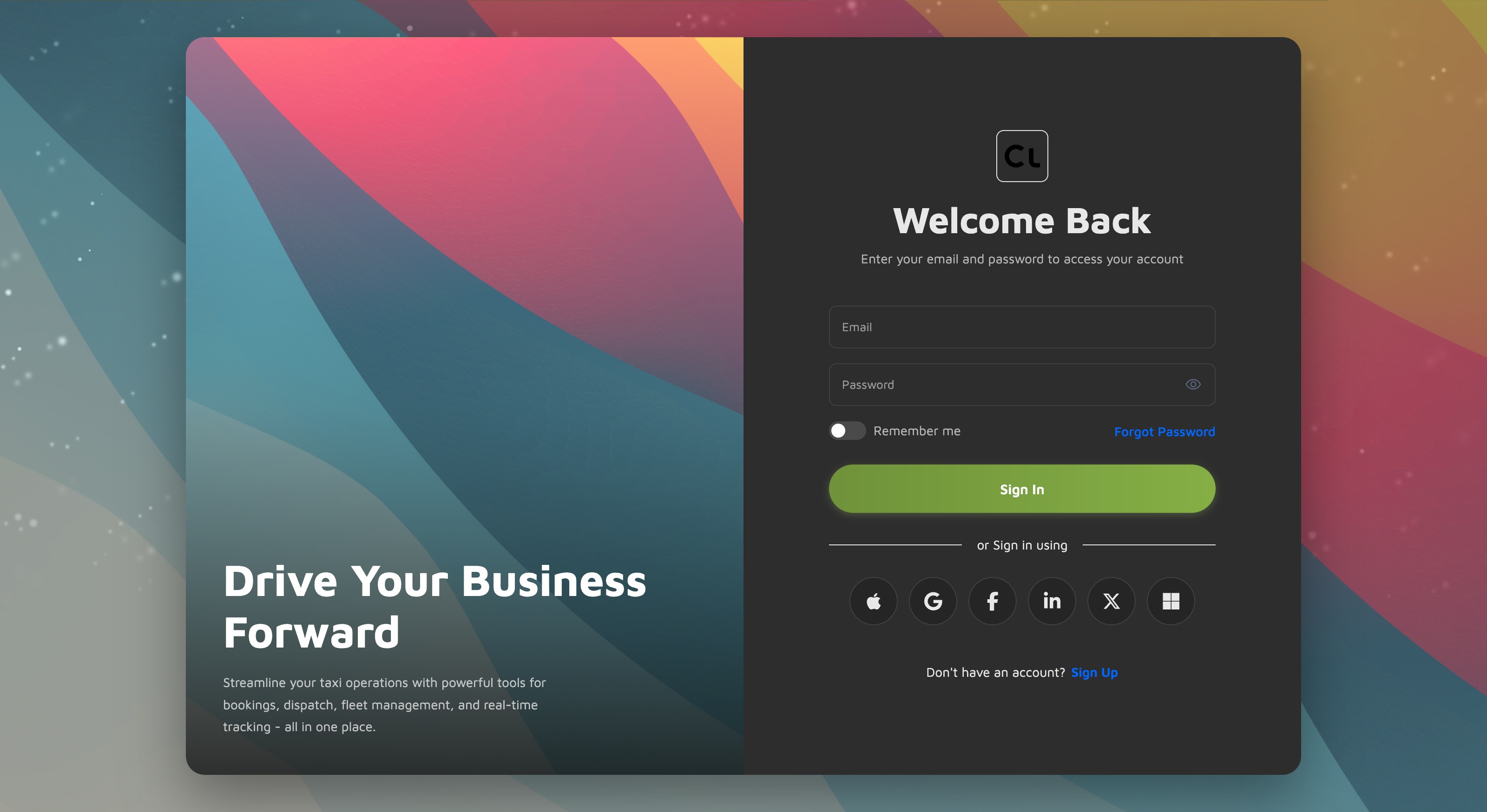
loginV1
Purpose. Primary sign-in screen, split-screen visual style.
Layout. Two columns inside .login-v1-container: a left quote panel
(.login-v1-left — headline + marketing copy over a full-bleed background image) and a right
form column (.login-v1-right) with the logo, title and login form. An animated snow
overlay (ul.g-snows) and a background image sit behind everything. body class is
login-v1-page.
Form fields (#loginForm):
| Field | Type | Notes |
|---|---|---|
email | Bootstrap floating label | |
| Password | password | Floating label + show/hide toggle (.password-toggle) |
| Remember me | checkbox switch | #rememberMe |
Validation (loginV1.js): email is required + email; password is required +
minlength: 6. On success the handler builds a { email, password, rememberMe } object, logs
it and shows a Login successful! toast. The dashboard redirect
(window.location.href = 'dashboard.html') is present but commented out.
Links between auth pages. Forgot Password → forgotPassword.html; Sign Up →
registrationV1.html. Social sign-in buttons (Apple, Google, Facebook, LinkedIn, X, Microsoft)
are visual only — no handlers attached.
Customize. Point the form action by editing the submitHandler in
assets/js/pages/auth/loginV1.js — replace the console.log / toast with your auth API call,
then uncomment (and adjust) the post-login redirect.
loginV2
Purpose. Same sign-in flow as loginV1, presented as a floating card over a live map —
visually consistent with the bookingV2 dispatch screen.
Layout. A full-screen Google Map (#map.login-v2-map) with an absolutely-positioned
.login-panel card on top, plus map controls (zoom in/out, recenter) and a vehicle-status
legend (Free / Running / Allotted / Offline). body class is login-v2-page. The map needs
your Google Maps API key (set in the page's <head> / map init script) and uses
assets/js/pages/shared/data.js for demo vehicle markers.
Form fields (#loginForm): Email, Password (with show/hide toggle) and a Remember me
switch — identical to V1.
Validation (loginV2.js): same rules and submitHandler pattern as loginV1.
Links between auth pages. Forgot Password? → forgotPassword.html; Create an account →
registrationV2.html. Social buttons here are Google and Apple (inline SVG icons), visual only.
Customize. Edit submitHandler in assets/js/pages/auth/loginV2.js for the auth call. Set
your map key in the page's <head> / map init script, or strip the map markup/scripts if you
only want the panel.
registrationV1
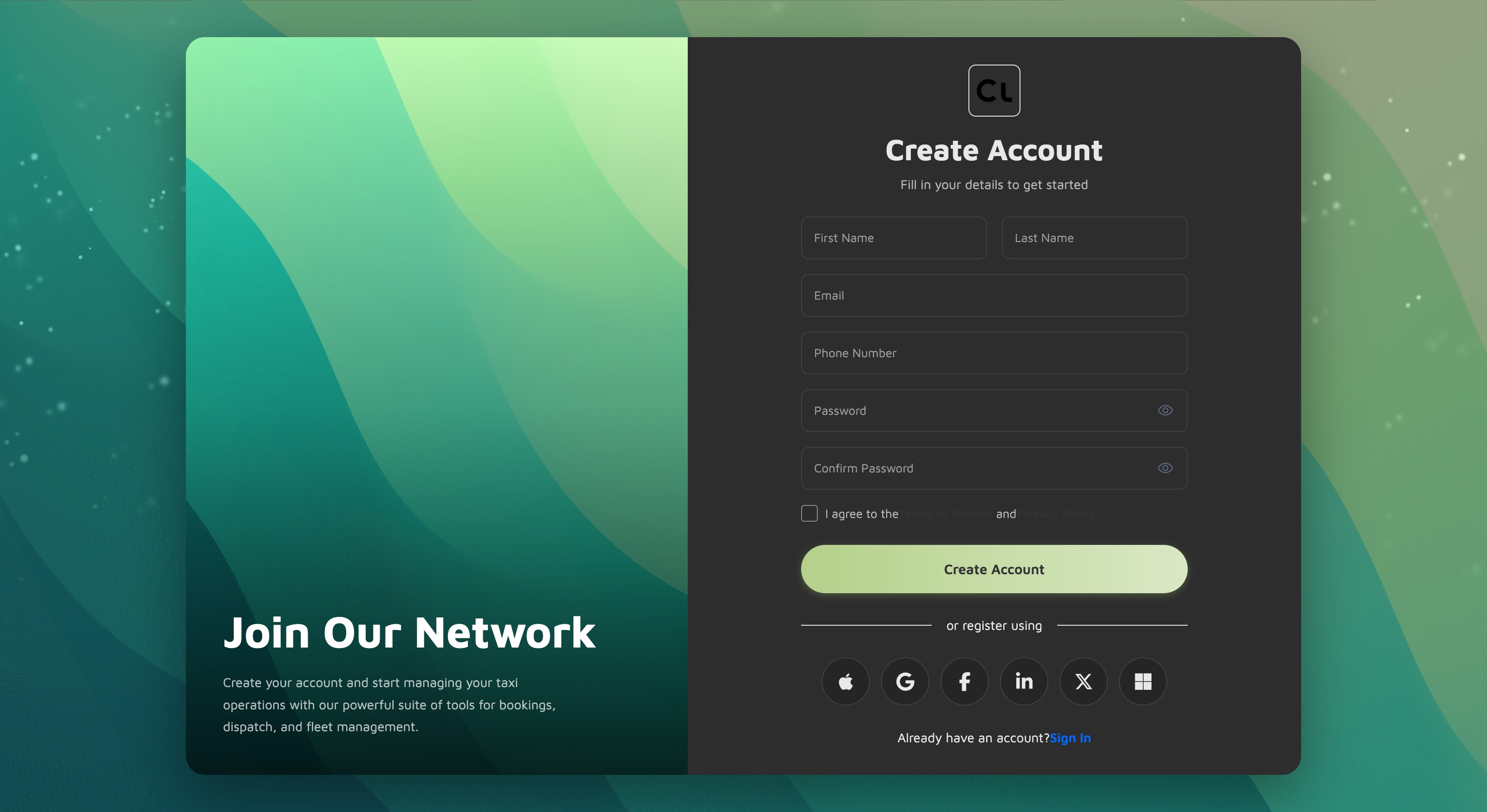
Purpose. New-account sign-up screen, split-screen visual style (matches loginV1).
Layout. Same two-column shell as loginV1 (.registration-v1-container, quote panel +
form column), with a different quote and background image. body class is
registration-v1-page.
Form fields (#registrationForm):
| Field | Type | Notes |
|---|---|---|
| First Name / Last Name | text | Side-by-side, 2–50 chars |
email | ||
| Phone Number | tel | |
| Password | password | Show/hide toggle |
| Confirm Password | password | Show/hide toggle |
| Agree to terms | checkbox | Required; links to Terms / Privacy (placeholder javascript:void(0)) |
Validation (registrationV1.js): names required (2–50 chars); email required + email;
phone uses a custom phoneNumber method (10–15 digits after stripping spaces/dashes); password
uses a custom strongPassword method (min 8 chars with an uppercase, a lowercase and a number);
confirm password must equalTo #password; terms checkbox required. On success it logs the
collected data and shows Account created successfully!; the redirect to loginV1.html is
commented out.
Links between auth pages. Already have an account? Sign In → loginV1.html. Social
register buttons are visual only.
Customize. Replace the submitHandler in assets/js/pages/auth/registrationV1.js with your
account-creation API call and enable the post-signup redirect.
registrationV2
Purpose. Same sign-up flow as registrationV1, presented as a floating panel over the
dispatch map (matches loginV2).
Layout. Full-screen map with an absolutely-positioned .registration-panel card, map
controls and the vehicle-status legend — same shell as loginV2. body class is
registration-v2-page. Requires the Google Maps key and data.js like loginV2.
Form fields (#registrationForm): First Name, Last Name, Email, Phone Number, Password,
Confirm Password and the terms checkbox — identical to V1.
Validation (registrationV2.js): same rule set as registrationV1 (custom phoneNumber
and strongPassword, equalTo confirm, required terms).
Links between auth pages. Already have an account? Sign In → loginV2.html. Social
buttons are Google and Apple, visual only.
Customize. Edit submitHandler in assets/js/pages/auth/registrationV2.js; set the map key
or remove the map as with loginV2.
forgotPassword
Purpose. Request a password-reset link by email (step 1 of recovery).
Layout. Reuses the loginV1 split-screen shell (body.login-v1-page,
.login-v1-container) with a recovery-themed quote. Single-field form with an inline success
alert that is hidden by default (#successMessage, .d-none).
Form fields (#forgotPasswordForm): Email Address (email).
Validation (forgotPassword.js): email required + email. On success the handler logs
the email, reveals #successMessage, disables the form inputs and button, and shows a
Password reset link sent to … toast. The redirect-to-login on a timer is commented out.
Links between auth pages. Back to Login → loginV1.html. This screen is the destination
of the Forgot Password links on both login pages, and conceptually precedes resetPassword.
Customize. In assets/js/pages/auth/forgotPassword.js, swap the simulated send for your
"send reset email" API call; keep or adjust the success alert and form-disable behaviour.
resetPassword
Purpose. Set a new password (step 2 of recovery — the page a reset-email link would open).
Layout. loginV1 split-screen shell again, with two password fields plus a live password
strength meter (.password-strength-section): a labelled strength bar, a percentage, and four
requirement rows (8+ chars, uppercase, lowercase, number) whose icons flip as you type. A hidden
success alert (#successMessage) appears after submit.
Form fields (#resetPasswordForm): New Password and Confirm Password (both with show/hide
toggles).
Validation (resetPassword.js): new password required + minlength: 8 + custom
strongPassword; confirm must equalTo #newPassword. The strength meter is computed on
input (length, case, number, special char, length bonus → Weak / Fair / Good / Strong /
Excellent) and is independent of validation. On success it reveals the alert, disables the form,
toasts Password has been reset successfully!, and redirects to loginV1.html after ~2s.
Links between auth pages. Back to Login → loginV1.html. Follows on from
forgotPassword.
Customize. Replace the submitHandler in assets/js/pages/auth/resetPassword.js with your
reset API call (you'll typically read a token from the URL query string and send it along with
the new password). Adjust or remove the redirect timer.
lockScreen
Purpose. Re-authenticate a locked session without fully signing out — keeps the current user and asks only for their password.
Layout. loginV1 split-screen shell with the quote panel carrying the logo and a
"Session Locked" message. The right column shows a user card (avatar with a lock badge,
name, email) above a single password field.
Form fields (#lockScreenForm): Password (with show/hide toggle).
Behaviour (lockScreen.js): on load it reads lockedUserName, lockedUserEmail and
lockedUserAvatar from sessionStorage (falling back to the demo "John Doe" values) and
focuses the password input. Validation requires only a non-empty password. On submit it disables
the button with a spinner, simulates verification with a timeout, clears the locked-session
keys, toasts Session unlocked successfully!, and redirects to lockScreenReturnUrl from
sessionStorage (default dashboard.html).
Links between auth pages. Sign in as different user → loginV1.html.
Customize. In assets/js/pages/auth/lockScreen.js, replace the simulated unlock with your
verify-password API call, and populate the sessionStorage keys when you lock the session
elsewhere in your app.
See also
- Forms — the floating-label inputs, switches and button styles these screens reuse.
- Form validation — how
app.validation.init(), jQuery Validate rules and the customstrongPassword/phoneNumbermethods work.
Was this page helpful?