
Utility & Misc Pages
The supporting pages that round out Taxi CRM 2026 — app utilities, cookie-consent banners, error pages, standalone email templates and icon-set references.
Beyond the core business screens, Taxi CRM 2026 ships a set of supporting pages — small utilities, legal/consent banners, error screens, ready-made email templates and icon cheat-sheets. They are grouped below by kind.
Live demo: browse every page at pvrtechstudio.com/taxi-crm/html.
App utilities
General-purpose tools that sit alongside the main feature set.
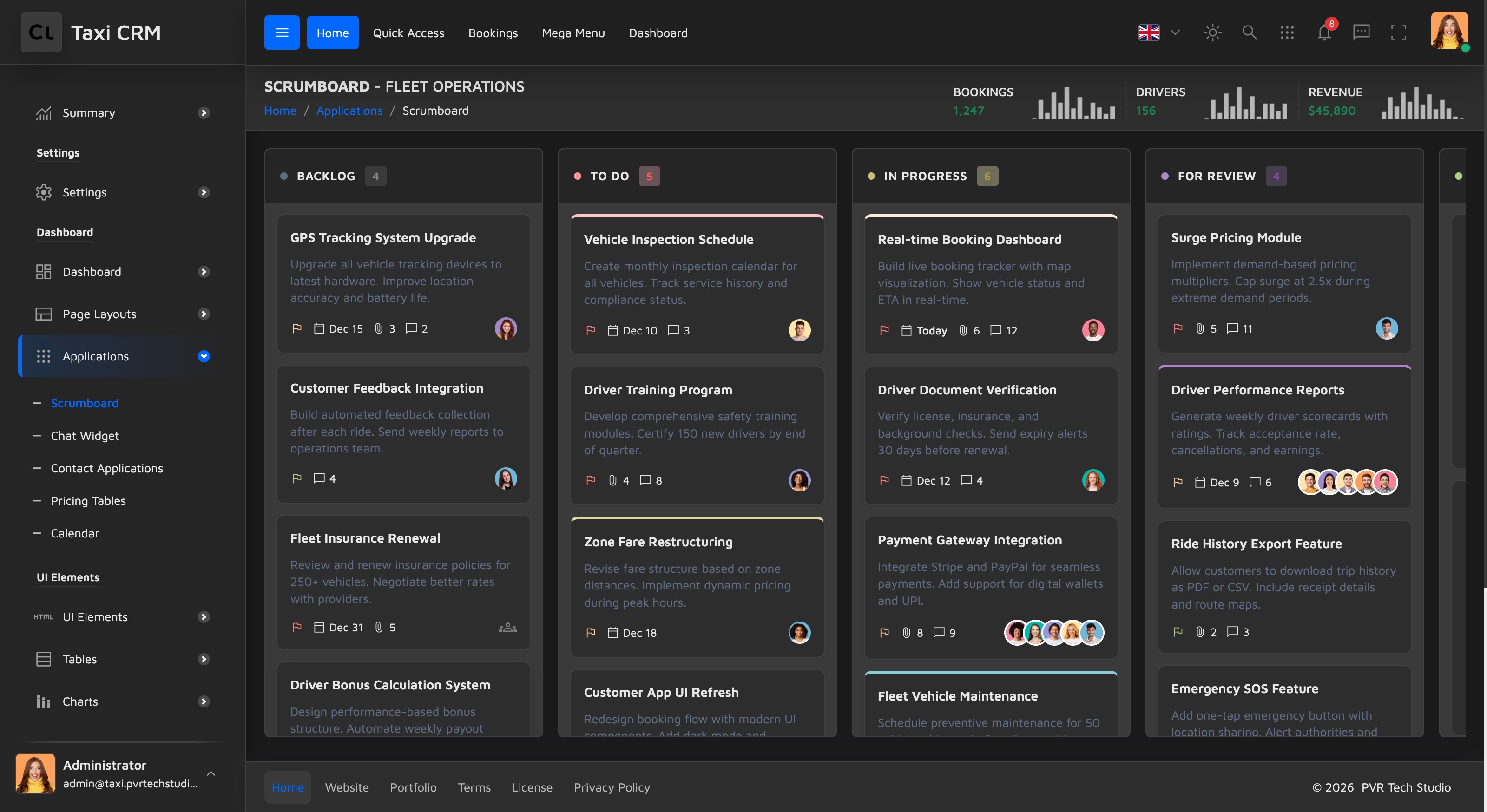
faqPage— a searchable help page. A left category rail (All Questions, General Information, Booking & Payment, Account & Profile, Drivers & Vehicles, Support & Contact) filters a Bootstrap accordion of questions. Each accordion item carriesdata-categoryanddata-tags, so the search box (#faqSearchInput) and category tabs can filter live. Questions are numbered and tagged with pale-palette pill badges (badge-pill badge-teal,badge-blue, etc.). Behaviour is wired inassets/js/pages/ui/faqPage.js.calendar— a full scheduling view built on FullCalendar. A left sidebar holds draggable events (New Booking, Airport Transfer, Corporate Pickup, VIP Service, City Tour, Package Delivery) that can be dropped onto the month grid, plus a Quick Add Event form. Each draggable carries adata-eventJSON payload with a title and a pale-palette colour. Logic lives in the calendar page script underassets/js/pages/.scrumBoard— a Kanban / scrum board for fleet operations. Five columns (Backlog, To Do, In Progress, For Review, Completed) hold HTML5-draggable task cards (.scrum-card[draggable="true"]). Each card shows a title, description, a priority flag (priority-high/priority-medium/priority-low), due date, attachment and comment counts, and assignee avatars (single or stacked). A per-card dropdown offers Edit, Duplicate, Assign, Move to (any column) and Delete. Column counts use pale-light badges.invoice— a printable taxi-service invoice with a create-invoice form. Covered in detail under Payments & Billing; it is listed here only for completeness.
Cookie consent
Three interchangeable cookie-consent banner styles, all built from the same
pvr-cookie component and sharing the Manage Cookies preferences dialog. All three
are driven by one script,
assets/js/pages/ui/cookiesV3.js. Pick the variant that fits the layout; they differ
only in placement and weight:
| Variant | Layout | Key markup | When to use |
|---|---|---|---|
cookiesV1 | Full-width bar pinned to the bottom (pvr-cookie-bottom) | Title, notice text, policy links, three actions: Manage Cookies, Decline, Accept All | Maximum-visibility, GDPR-style consent with an explicit decline |
cookiesV2 | Compact boxed card, bottom-right corner (pvr-cookie-boxed pvr-cookie-bottom-right) | Close button, title, short notice, Manage Cookies + Accept Cookies | Lightweight, less intrusive nudge |
cookiesV3 | Preferences-first — opens the Manage Cookies modal directly (no inline banner) | Just the shared cookieModal (granular category toggles) | Detailed, opt-in-by-category consent flows |
All variants use the dark notice skin (pvr-cookie-dark) and Bootstrap buttons. To
change copy or links, edit the relevant cookiesV*.html; to change the category options,
edit the shared Manage Cookies modal markup (it is reused across the variants).
Error pages
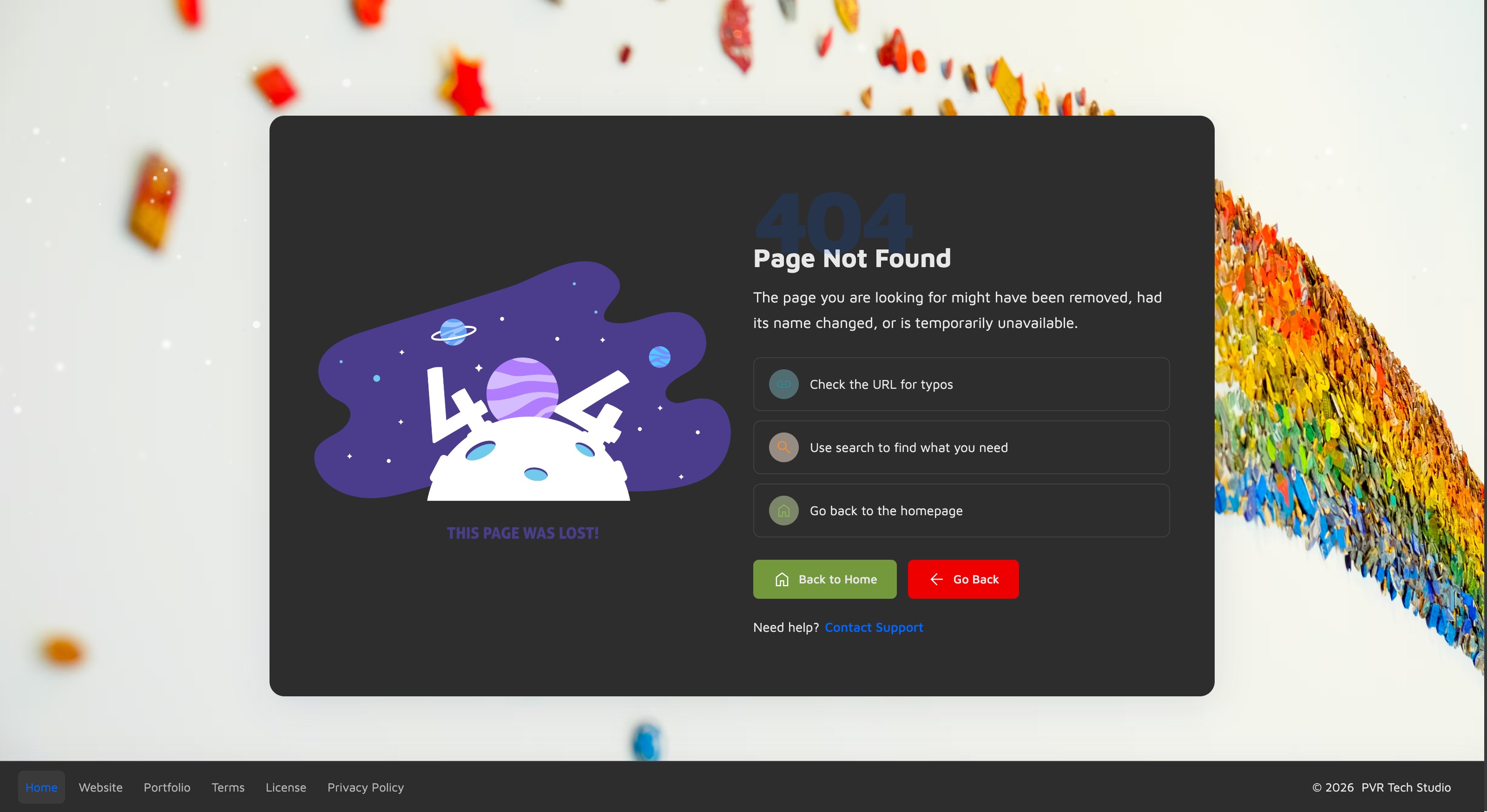
Three HTTP-error screens sharing one layout (error-page-card / error-page-info):
a large status code, a title and message, three quick-help tips with Material Symbols
icons, two action buttons, and a support mailto link. All text is data-i18n-driven.
Each page references an array of background illustrations via data-images on the
img.error-page-image (the script picks/cycles one).
| Page | Code | Message theme | Primary actions |
|---|---|---|---|
page404 | 404 | Page not found / removed or mistyped URL | Back to Home, Go Back (history.back()) |
page500 | 500 | Internal server error, team notified | Back to Home, Try Again (location.reload()) |
page503 | 503 | Service unavailable / scheduled maintenance | Back to Home, Try Again (location.reload()) |
Note page404 is a full-screen standalone layout (bodyClass: 'error-page-fullscreen',
no header/sidebar, with a decorative g-snows overlay), while page500 and page503
render inside the normal app shell (header, sidebar, page header) as a panel-card.
Scripts live under assets/js/pages/errors/.
Email templates
Eight standalone HTML email templates. Unlike every other page in the kit, these are
not part of the app shell: each is a complete <html> document with an XHTML
transitional doctype, table-based layout, and inline / embedded styles in the
<head> (.ReadMsgBody, .ExternalClass, fixed table layout, etc.) — the markup pattern
required for reliable rendering across email clients (Outlook, Gmail, Apple Mail). They do
not load style.css, the sidebar, or the app JS. Use them as transactional-email starting
points: copy the file, swap the copy and brand assets, and send through your mail provider.
Titles are data-i18n-keyed so the set can be translated like the rest of the kit.
| Template file | Purpose |
|---|---|
smEmailTemplateWelcome | Welcome email for a newly registered user |
smEmailTemplateActivate | Account-activation / verify-email message |
smEmailTemplateForgotPassword | Password-reset link email |
smEmailTemplatePayment | Payment receipt / transaction confirmation |
smEmailTemplateOrderConfirm | Booking confirmation for a ride |
smEmailTemplateBirthday | Birthday greeting / promo to a customer |
smEmailTemplateSmallTable | Booking summary using a compact data table |
smEmailTemplateLargeTable | Task / activity report using a wide multi-row table |
The two *Table variants demonstrate laying out tabular data (booking summaries, reports)
inside an email-safe table; the rest are single-message transactional layouts.
Icon references
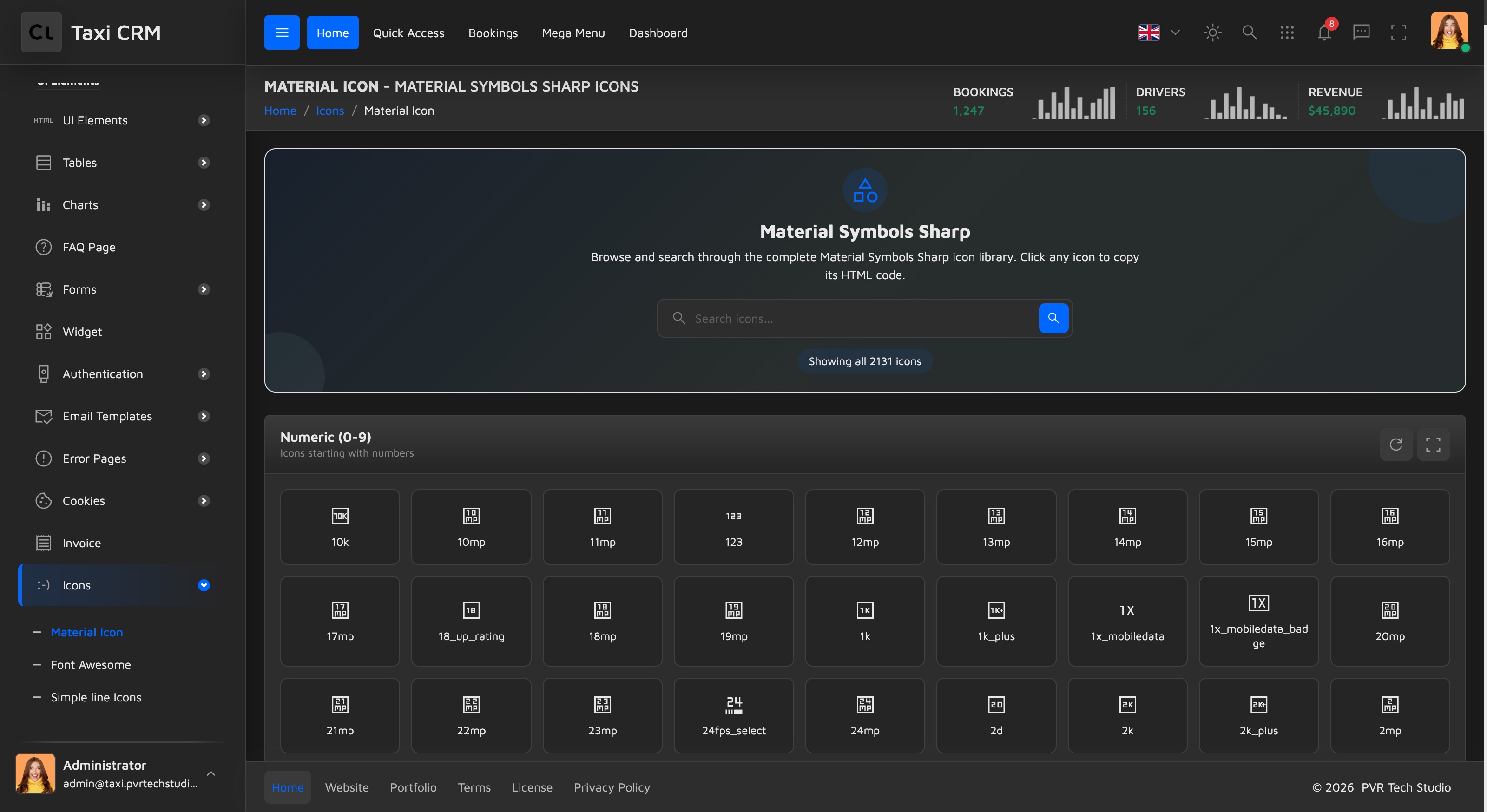
Three searchable icon cheat-sheets. Each shares the same layout (icon-header-section
with a title, subtitle and a live search box #iconSearch) and a click-to-copy
interaction — clicking any icon copies its HTML snippet. Use them to look up the exact
class or glyph name to paste into your markup.
| Page | Icon set | Usage snippet |
|---|---|---|
materialIcons | Material Symbols Sharp (~4,852 icons) — the kit's primary icon set | <span class="material-symbols-sharp">search</span> |
fontAwesome | Font Awesome (solid) — commonly used subset | <span class="fa-solid fa-icons"></span> |
simpleLineIcons | Simple Line Icons — thin outline set (loads its own simple-line-icons.min.css plugin stylesheet) | <span class="icon-grid"></span> |
Across the rest of Taxi CRM 2026, Material Symbols Sharp is the default — most
components reference material-symbols-sharp. Reach for the other two sets only when you
need a glyph the primary set lacks.
For the visual building blocks these pages reuse (cards, badges, the pale colour palette), see Widgets and CSS System.
Was this page helpful?